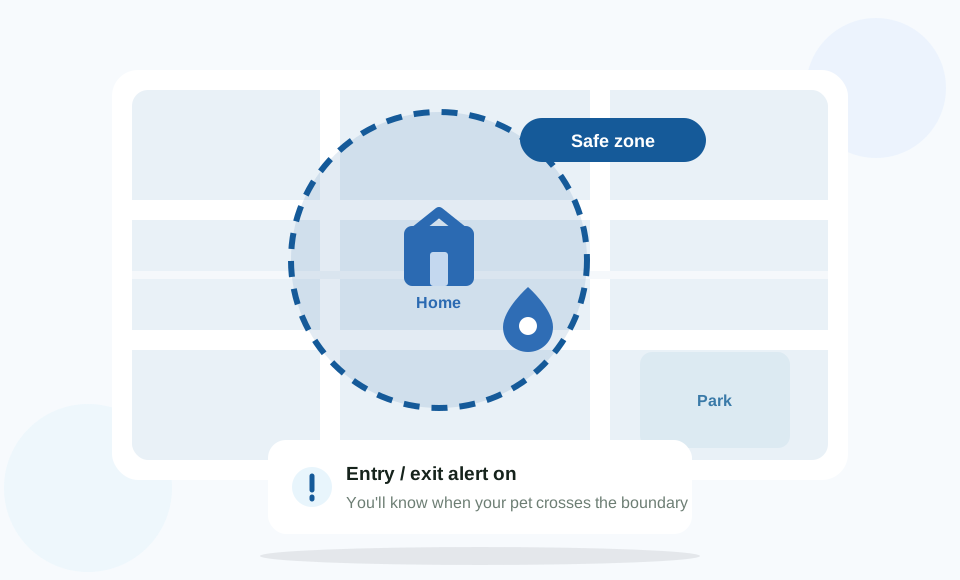
See where your dog or cat went, and know when they leave the safe zone.
4G LTE + 2G GSM
600mAh
IP67
GPS · LBS · WiFi
Setup at a Glance
Five illustrated chapters walk through the SIM, charging, collar fit, app pairing and the first safe zone. Each one pairs a drawing with plain instructions you can follow offline.
Pairing the tracker in the app
Product Overview
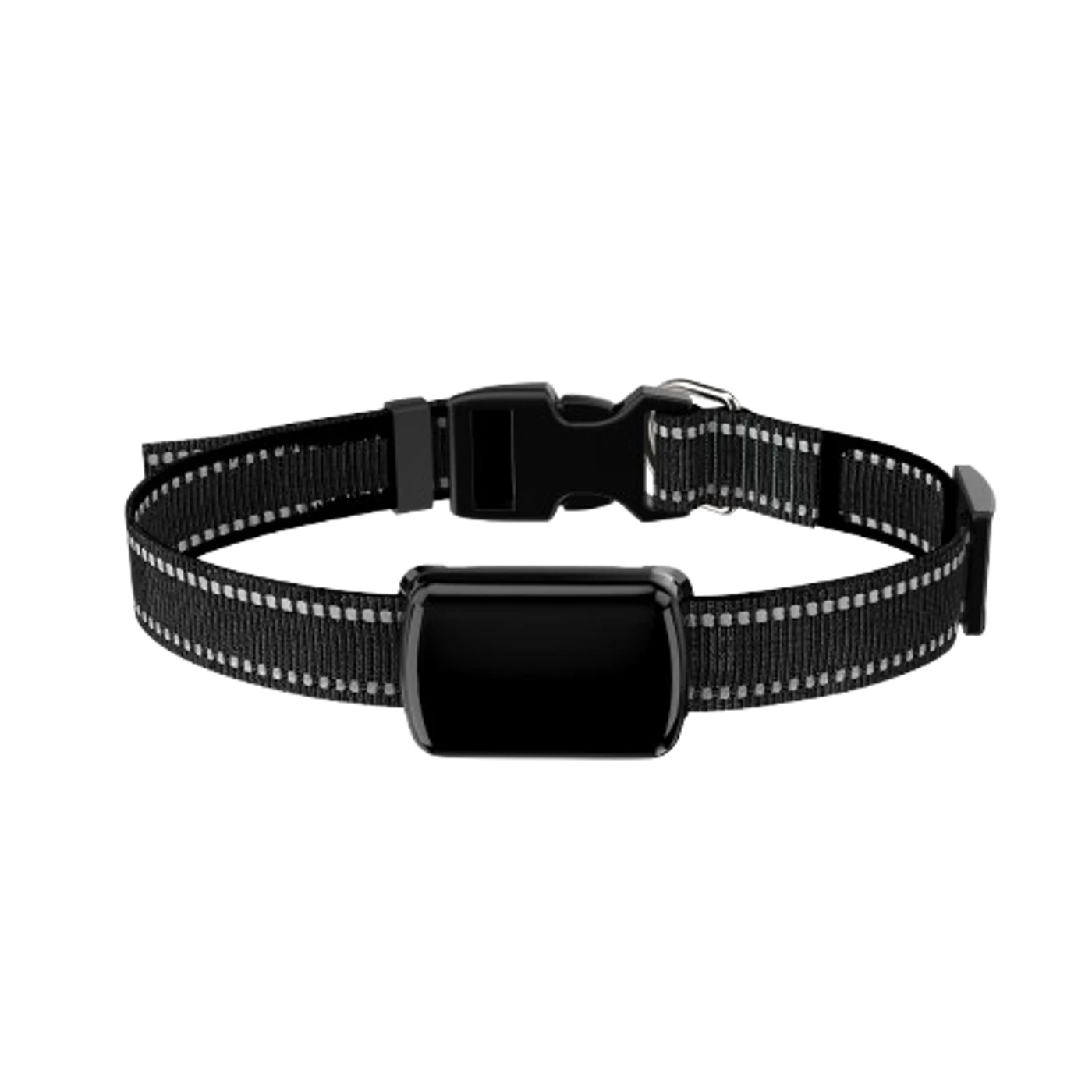
The BiBi3 Plus is a collar tag that reports where your pet is over 4G. Outdoors it works from satellites. Under a roof, or between tall buildings, it falls back to WiFi networks and mobile towers, which is why the map usually has something on it even when you open the app standing in the kitchen.
How a position is worked out
Four satellite systems are supported: GPS, Beidou, GLONASS and AGPS. Under open sky the tag resolves to about five metres. Indoors, expect ten metres or so while WiFi and tower data are available, and noticeably worse when they are not; a position derived from towers alone can land a street or two away. The app always prints the time of the last report, so you can judge how much to trust the dot before acting on it.
Boundaries and history
Draw a circle for the garden, a polygon along the lanes, or a whole city if your cat has ambitions. The app tells you when the tag crosses the line, and entry and exit are separate switches. Most owners only want the exit notice, and leaving both on just doubles the pings.
Route history runs back 180 days. Pick a date and the app replays the path in order. In practice that is the part people use after a first escape, not to watch the pet live but to find the gap in the fence it slipped through.
Alerts, power and fit
Vibration, motion, low battery and offline each raise their own notification, so a restless dog does not read the same as a flat cell. All four can be turned off individually, which is worth doing for motion if your pet paces.
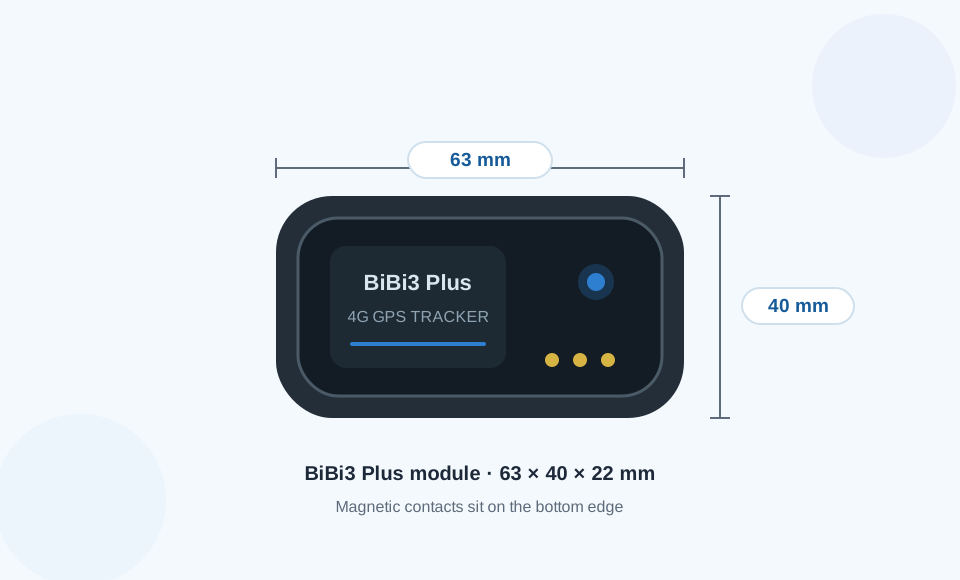
The module measures 63 × 40 × 22 mm on a 600mAh cell. Most dogs stop noticing it inside a day. Cats are less forgiving, and 22 mm is genuinely thick on a small one: check the fit more often, and watch for scratching at the collar in the first week.
Power can be switched on and off from the app, and energy-saving mode trades update frequency for days between charges. BiBi3 Plus-A and BiBi3 Plus-G are the same hardware on different radio bands; both band lists are in the specification table.
In the Box
Tracker moduleCollar mounting
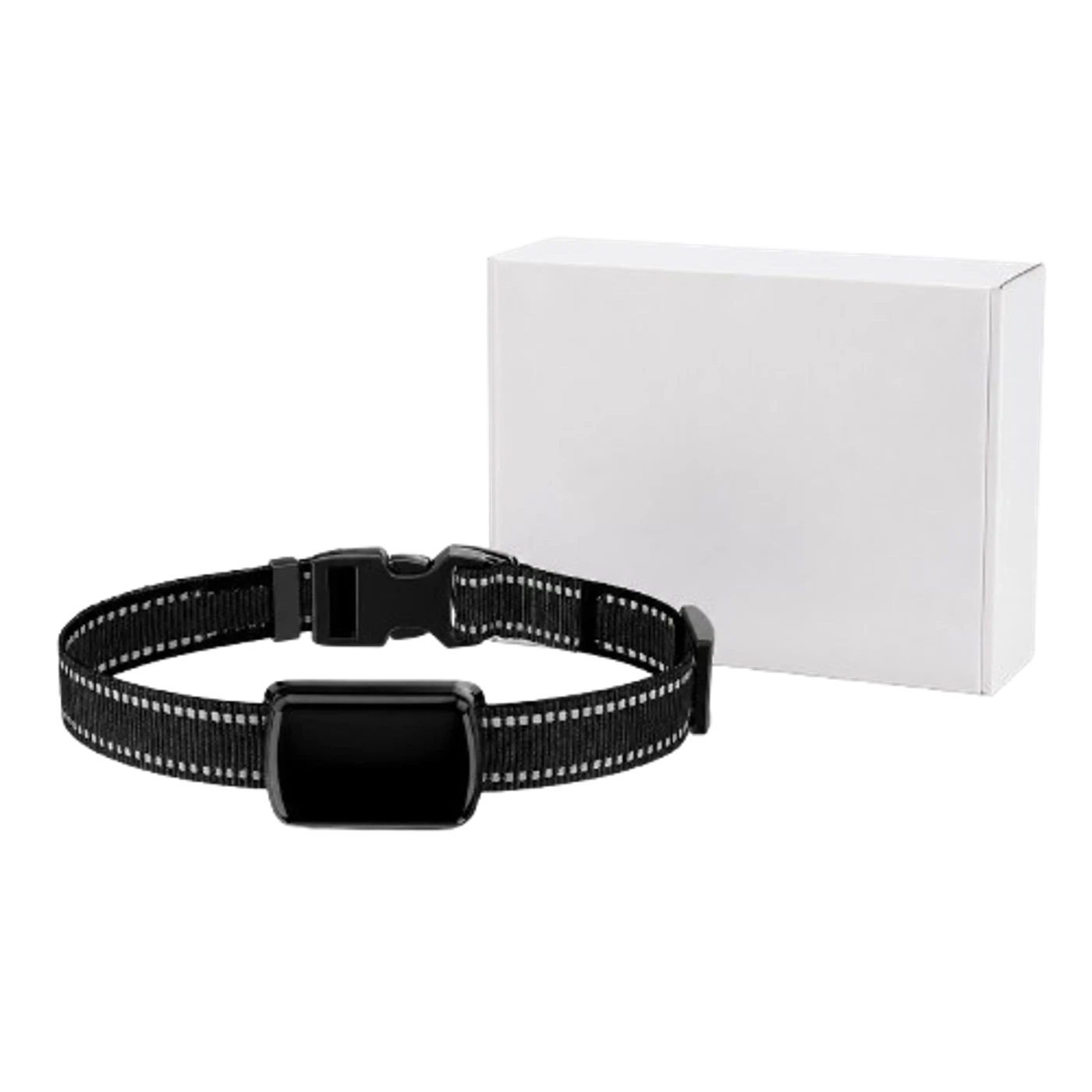
The retail carton holds the tracker, a reflective collar strap, a magnetic charging cable and a short quick-start sheet. Two things are not in the box: a SIM card and a phone with the tracking app installed.
Buy a Nano SIM with a data plan before you start. Check that its network matches the bands listed for your BiBi3 Plus-A or BiBi3 Plus-G version — a card that works in one country may have no signal in another.
Before the first walk: charge the tracker fully and add the SIM. A low battery or a missing SIM is the reason most new units fail to report a position.
Getting Started
Terms used in this guide
Nano SIM — the smallest standard SIM size, about the width of a fingernail. Device ID — the serial printed on the tracker and its box; the app uses it to find your unit. Geofence — a virtual boundary you draw on the map.
Step
What you do
How to tell it worked
1. SIM
Slide a Nano SIM into the slot
Card sits flat, no forcing
2. Charge
Seat the magnetic cable and charge to full
Tracker powers on
3. Collar
Thread the strap through both loops
Tag faces outward, strap is snug
4. App
Add the device ID in the app
A live position appears
3.1 Insert the SIM
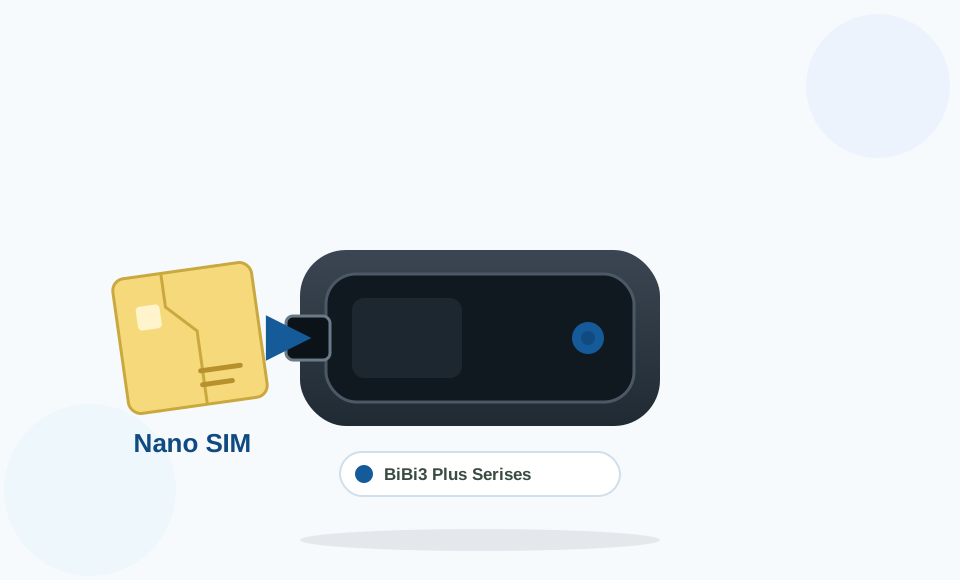
Open the SIM cover on the side of the module. Slide the Nano SIM into the slot with the metal contacts facing down, and press gently until it lies flat. Close the cover before you handle the collar.
The slot takes a Nano SIM only. If your card is micro or mini size, ask your operator for the correct size rather than trimming it yourself — a bent card can jam the holder.
3.2 Charge the Battery
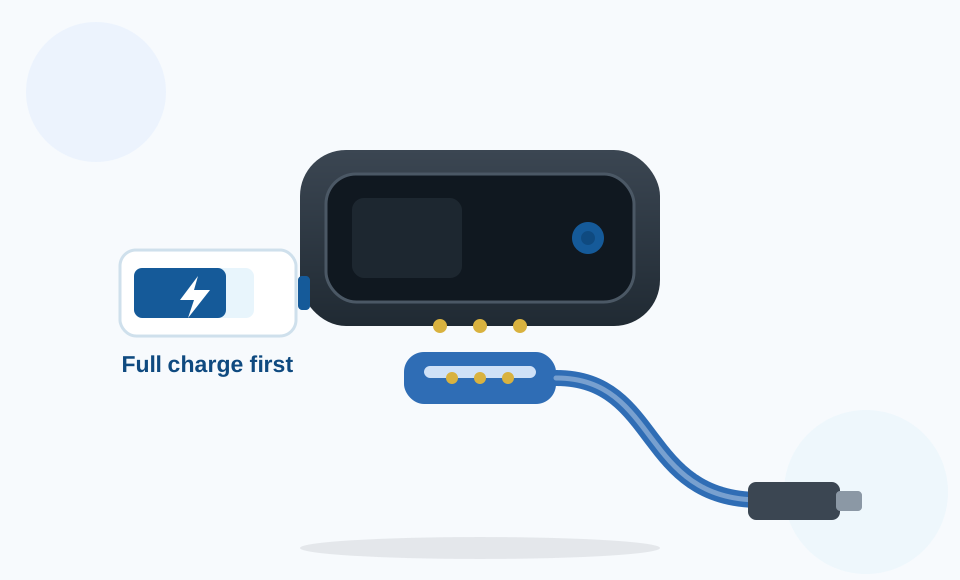
Hold the magnetic cable near the three contacts on the bottom edge and let the magnets pull it into place. Plug the other end into a 5V USB source. Charge fully before the first use so the tracker has enough power for pairing and the first day out.
3.3 Fit the Collar
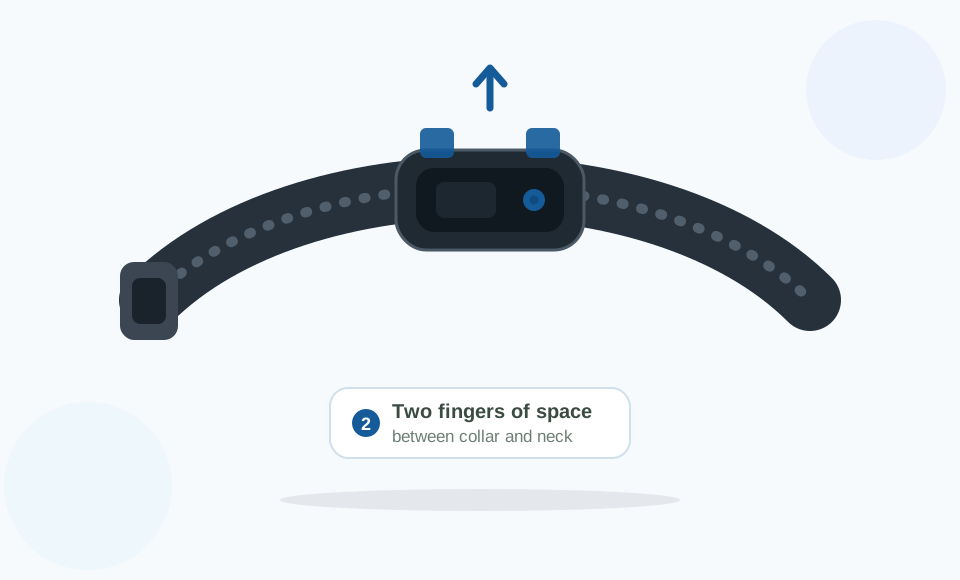
Thread the collar through both loops on the tracker and pull it tight enough that the tag cannot spin around your pet's neck. Leave room for two fingers between the strap and the fur. The module should sit on top of the neck, facing outward, so the antenna is not pressed against the body.
Check the fit weekly. Fur changes with the seasons and a collar that was right in spring can become tight in summer. A snug collar that is not restrictive is the safe middle ground.
3.4 Pair in the App
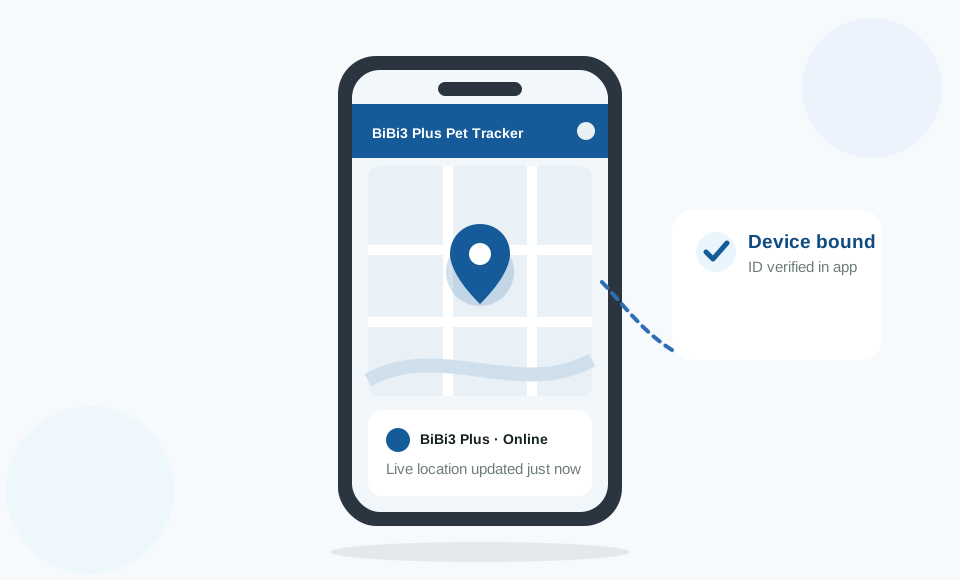
Press the power button, then open the tracking app and add a new device. Enter the ID from the label or the box. Once the unit checks in, the map should show its current position. If nothing appears after a few minutes, confirm the SIM has data and move the tracker outdoors for a clearer signal.
Daily Use
4.1 Location & History
Open the app whenever you want the current position. The map shows the last reported point and its timestamp, which is useful for judging how fresh the data is. To review an earlier day, choose a date in the history view and the app draws the recorded route in order.
Switching the map to street level helps when a reported point sits somewhere you do not recognise. Coordinates are precise but not memorable; a shop front or a junction is.
Energy-saving mode lowers the reporting rate. Turn it on while the collar hangs by the door, and off again before a walk.
For business use, API and TCP access are both enabled, so location data can be pulled into an existing system instead of being read off a phone.
4.2 Safe Zone & Alerts
Draw a safe zone around the house or the park you visit most. You can set a circle for a fixed spot, a polygon for an irregular plot, or a city area for a wider boundary. Entry and exit notifications can be switched on together or separately.
Alert
When it fires
Vibration
The tag detects repeated shaking or impact
Motion
The tag moves after a period of rest
Offline
The platform stops receiving reports
Low battery
The remaining charge runs down
Fence entry / exit
The pet crosses the boundary you drew
Alerts travel over the mobile network. If the SIM has no credit or the tag is in a dead spot, notifications will be delayed until the connection returns.
Live tracking, route playback, geofence, street view, power saving, vibration and motion alarms, low battery and offline alarms, fence entry/exit alerts, remote power on/off
Charging & Battery Care
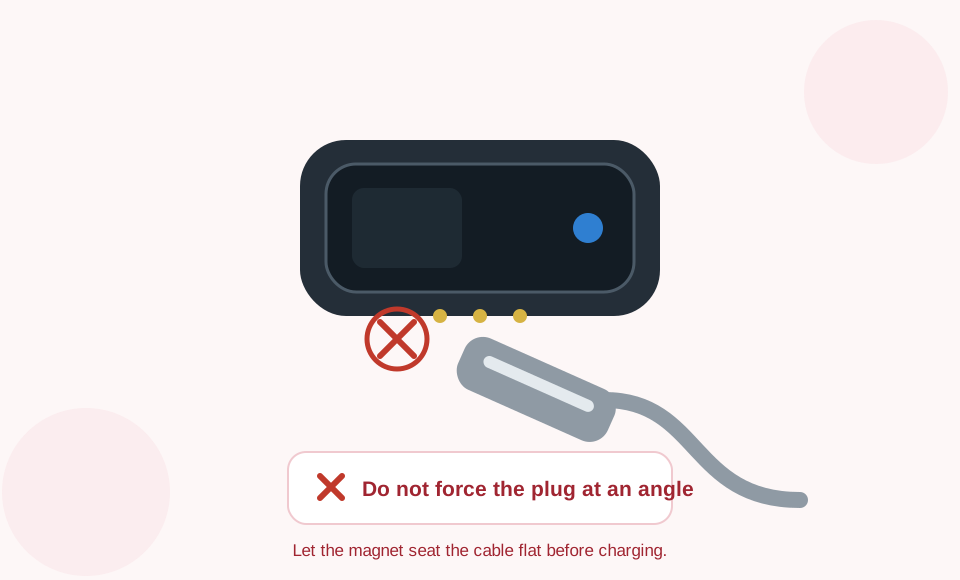
The tracker charges only through the magnetic cable supplied with it. Line the head up with the three contacts on the bottom edge and let the magnets do the work. A 5V phone charger or power bank is suitable; a high-power fast charger is not needed.
Seat the head flat before you let go.
✓ Correct alignment✕ Wrong angle
Let the magnets pull the plug into position. If the head sits at an angle or the contacts look exposed, lift it off and try again rather than holding it in place. A poor connection can leave the battery partly charged.
Wipe dry first. Dry the contacts before charging if your pet has been in water or mud, and do not leave the unit on charge unattended for long periods. Keeping the contacts clean helps the battery last.
FAQ
Why does the app show no location for my tracker?
Start with the SIM. It needs to be a Nano card with an active data plan, and it needs to sit flat in the slot. Then charge the tag and take it outside. The app can only place a tracker once the unit has checked in over the mobile network, so the first position after a charge or a card swap can take a few minutes.
Is a SIM card included with the BiBi3 Plus?
No. The box holds the tracker, a collar strap, the magnetic cable and a quick-start sheet. Buy a Nano SIM separately, and match its bands to your version before you activate a plan.
How often do I need to charge the tracker?
There is no fixed answer, because consumption depends on how often the tag reports and how hard it has to work to reach a tower. Short intervals and weak coverage both cost power. Energy-saving mode cuts the reporting rate, which is the single biggest lever you have. Charge when the app raises a low battery alert rather than waiting for the unit to drop offline; a tracker that dies mid-walk is no use to anyone. The battery note on this site covers the trade-offs in detail.
Can my pet wear the tracker in the rain or water?
The IP67 housing takes rain, wet grass and a brief splash, so the collar can stay on in normal weather. It is not built for swimming or diving. Dry the three contacts before you connect the charger, especially after a muddy walk.
What happens when my pet leaves the safe zone?
The app sends a boundary alert when the tag crosses the line you drew. Entry and exit can be enabled together or separately. Alerts travel over the mobile network, so no credit or a dead spot will delay them.
Will the same tracker work if I move to another country?
Only if the local network uses the same bands as your unit. BiBi3 Plus-A and BiBi3 Plus-G are identical hardware with different radios. Check the band list against the operator you plan to use, then buy a local Nano SIM when you arrive.
More guides
Two support notes go further than a printed manual can, plus a short page about how this site was put together.
Five short chapters, each with a drawing and the exact actions to take. Follow them in order the first time you set up the BiBi3 Plus.
Step 1 — the SIM goes in first
Step 1
Insert the Nano SIM
Lift the SIM cover on the side of the module and slide a Nano SIM into the slot with the metal contacts facing down. Press until the card lies flat, then close the cover.
Ask your operator for a Nano SIM rather than cutting a larger card down. The slot is sized for one card only, and a damaged card can jam the holder. An active data plan is required — the tracker sends its position over the mobile network.
Check the band list in Specifications before buying. A card that works in one country may have no signal in another.
Step 2 — let the magnets align the plug
Step 2
Charge the Battery
Hold the magnetic cable near the three contacts on the bottom edge. The magnets pull the head into place; plug the other end into a 5V USB charger or power bank.
Charge to full before the first walk. A partly charged tag may switch on but drop offline while you are pairing it. Wipe the contacts dry first if your pet has been out in rain or mud.
The head must sit flat, not at an angle. If the contacts are still exposed, lift the plug off and try again instead of holding it there.
Step 3 — tag on top, facing outward
Step 3
Fit the Collar
Thread the strap through both loops on the tracker and pull it snug. Leave space for two fingers between the strap and the fur, so the collar is secure without pressing in.
Position the module on top of the neck with its face pointing outward. The antenna sits inside the tag, so a tag pressed flat against the body can lose signal. Check the fit every week, especially as the seasons change.
Do not overtighten. A collar that is too tight can rub the fur and restrict movement. If the tag spins freely on the strap, tighten it one notch.
Step 4 — a live point confirms pairing
Step 4
Pair in the App
Power the tracker on, open the app and choose Add device. Enter the device ID printed on the label or the box, then wait for the unit to check in.
A live point on the map confirms the pairing worked. If nothing appears after a few minutes, move the tag outdoors and confirm the SIM still has data. Keep the box — the ID is easier to read there than on the small tag.
Route history is stored for up to 180 days. Choose a date in the history view to replay where your pet went.
Step 5 — draw a boundary on the map
Step 5
Draw Your First Safe Zone
Open the map in the app and draw a boundary around your home or the park you visit most. A circle suits a fixed spot; a polygon follows an irregular plot.
Switch on entry and exit notifications. The app will then alert you when your pet crosses the line in either direction. Vibration, motion, low battery and offline alerts can be enabled from the same menu.
Alerts travel over the mobile network. If the SIM runs out of credit or the tag sits in a dead spot, notifications arrive late or not at all.
No first-party tracking cookies here. Ads, when shown, may set Google cookies. Privacy policy.